对于很多资深的 NAS 玩家来说,拿到一台机器首先要配置远程登录和环境依赖。懒猫上其实可以实现云计算讲的 Iass - Pass -Sass 这三个层级,不过对于资深玩家而言,肯定是要从 Infra 这个级别入手的。
官方文档如下: https://developer.lazycat.cloud/ssh.html
安装懒猫开发者工具,然后再右上角能够看到 sshd 服务的状态。 然后点击开启,之后我们才可以使用 ssh 登录,在写这篇文章测试的时候,我关闭了这个按钮,再去 ssh 直接就报错了。
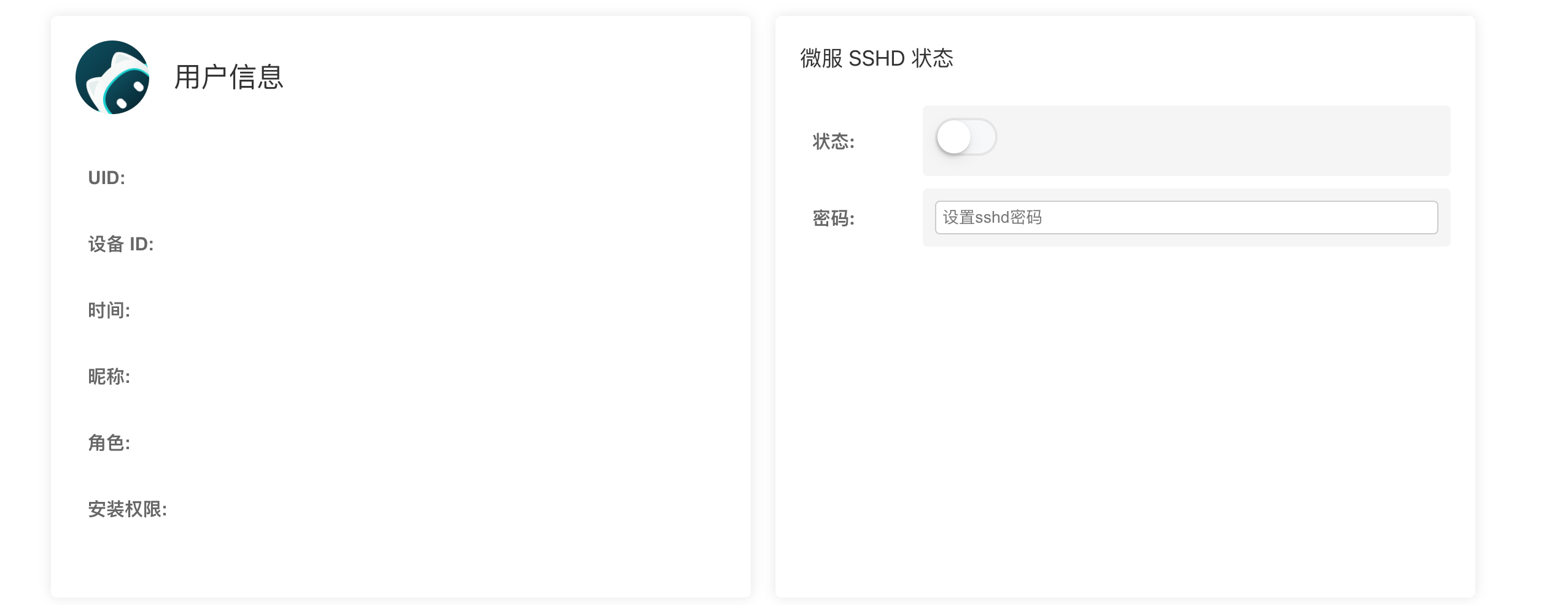
默认是 root 身份登录,密码在开发者工具里启动的时候设置:
bash
ssh root@<your-service-name>.heiyu.space如果觉得密码麻烦,也可以导入密钥,更加安全:
bash
ssh-copy-id -i ~/.ssh/id_ed25519 root@xxxxx.heiyu.space输出如下:
/usr/bin/ssh-copy-id: INFO: Source of key(s) to be installed: "/Users/xu/.ssh/id_ed25519.pub"
/usr/bin/ssh-copy-id: INFO: attempting to log in with the new key(s), to filter out any that are already installed
/usr/bin/ssh-copy-id: INFO: 1 key(s) remain to be installed -- if you are prompted now it is to install the new keys
root@micro.heiyu.space's password:

Number of key(s) added:        1

Now try logging into the machine, with: "ssh -i /.ssh/id_ed25519 'root@xxxx.heiyu.space'"
and check to make sure that only the key(s) you wanted were added.
如果觉得 root 用户不安全的话,可以新建一个日常用户,然后加到 docker 组里面,也能正常使用 docker
bash
sudo useradd -m -s /bin/bash user1

usermod -aG docker user1

usermod -aG sudo user1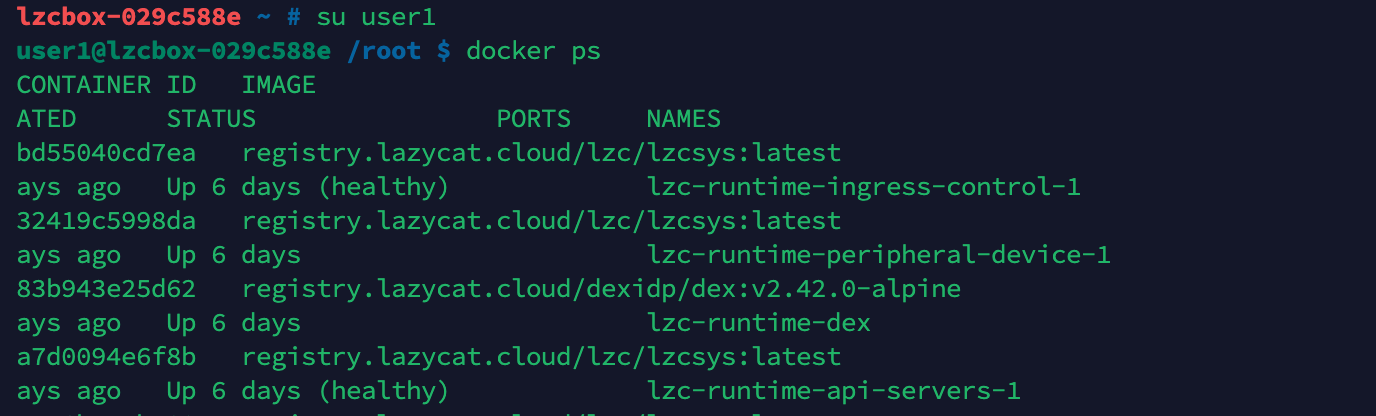
如果遇到到 root 组会有无法使用 sudo 的问题,请独立安装,sudo 是单独的软件包,需要安装才有.并不是所有 Linux 都有 sudo
bash
apt update && apt install sudo注意:要开着懒猫微服 APP ,否则无法使用 heiyu.space 提供的穿透服务。